
Enrol an Android device
Set up a phone or tablet with a QR code.
Time needed: about 10 minutes per device. You need: the device, Wi-Fi, and an admin or helpdesk account.
Enrolling this way erases the device. Make sure nothing on it is needed before you start.
Before you start
- Make sure the device is charged above 30% or plugged in.
- Know the Wi-Fi name and password of where you are setting up.
- Decide the group the device belongs to, such as
Year-10-Tablets.
Step 1 — Create the token
- In the console, go to Devices → Enrol new device.
- Choose Android · QR provisioning.
- Type the group name into Enrol into group.
- Set Expires in and Max uses to suit — for one device,
1use is right. - Select Generate token. A QR code appears.
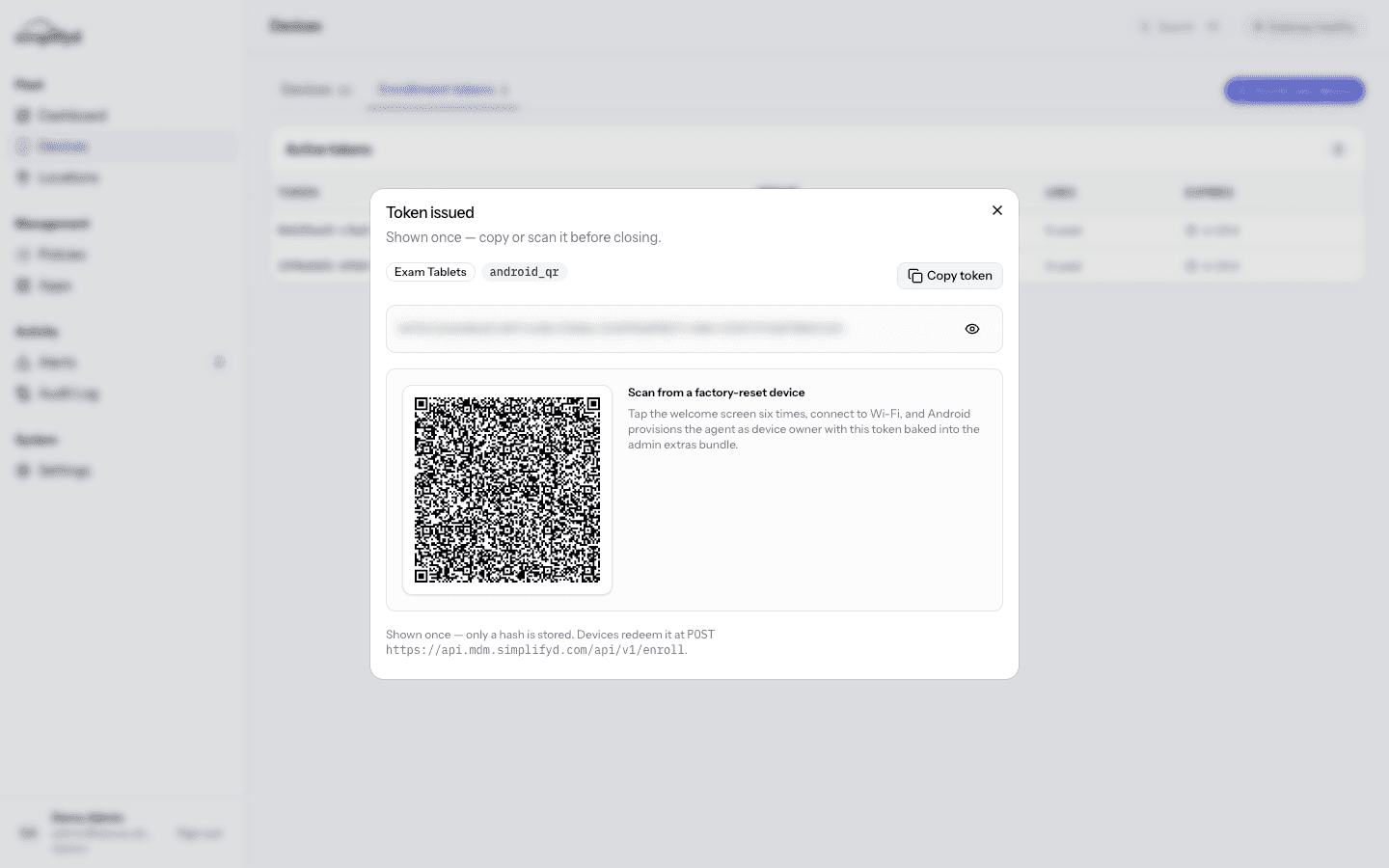
Leave this screen open. The code disappears when you close it.
Step 2 — Reset the device
If the device has been used before, factory reset it first: Settings → System → Reset options → Erase all data. Wait for it to restart into the first-time setup screen.
A brand-new device is already at this screen.
Step 3 — Scan the code
- On the device's very first "Hi there" / welcome screen, tap the screen six times in the same spot.
- A QR scanner opens. If the device asks to connect to Wi-Fi first, do that.
- Point the camera at the QR code on your console screen.
- The device downloads its management app and sets itself up. This takes 5–10 minutes and the device may restart.
Step 4 — Finish on the device
Follow the remaining prompts. When setup finishes the device is managed and you will see a work profile or work apps on it.
Step 5 — Confirm in the console
- Go to Devices and find the new serial number.
- Check the last check-in is recent and the group is right.
- Open the device and select Sync now. When the command reaches done, the link works.
If it goes wrong
| Problem | Fix |
|---|---|
| Tapping six times does nothing | You are past the first screen. Factory reset and start again. |
| The scanner does not open | Some devices need a different starting point. Reset, and on the welcome screen look for Set up for work or tap six times on the very first screen only. |
| "Can't set up device" | Usually Wi-Fi dropped mid-setup or the token has been used. Reset the device and generate a fresh token. |
| The device never appears in Devices | Wait 10 minutes, then check the device has internet. Send it to Wi-Fi and wait for another check-in. |