
Lock down firmware settings (Windows)
Stop people changing BIOS/UEFI settings on laptops you own.
Time needed: 15 minutes per device during staging, then a few minutes per change. You need: a Windows laptop your organisation owns, physical access to it once, and an admin account in the console.
Firmware settings — sometimes called the BIOS or UEFI — control the hardware itself: the camera, the microphone, the wireless radios, and what the machine is allowed to boot from. Someone who can change those can undo parts of your policy, or boot the laptop from a USB stick and bypass it altogether.
Simplifyd MDM can manage those settings for you and stop anyone else changing them.
This only works on laptops the organisation owns, and only on models whose firmware supports it. It is not available on Android, and never on a personal device.
Step 1 — Check the laptop can do it
- Open the device in Devices.
- Find the Firmware (DFCI) card.
- Read DFCI capable.
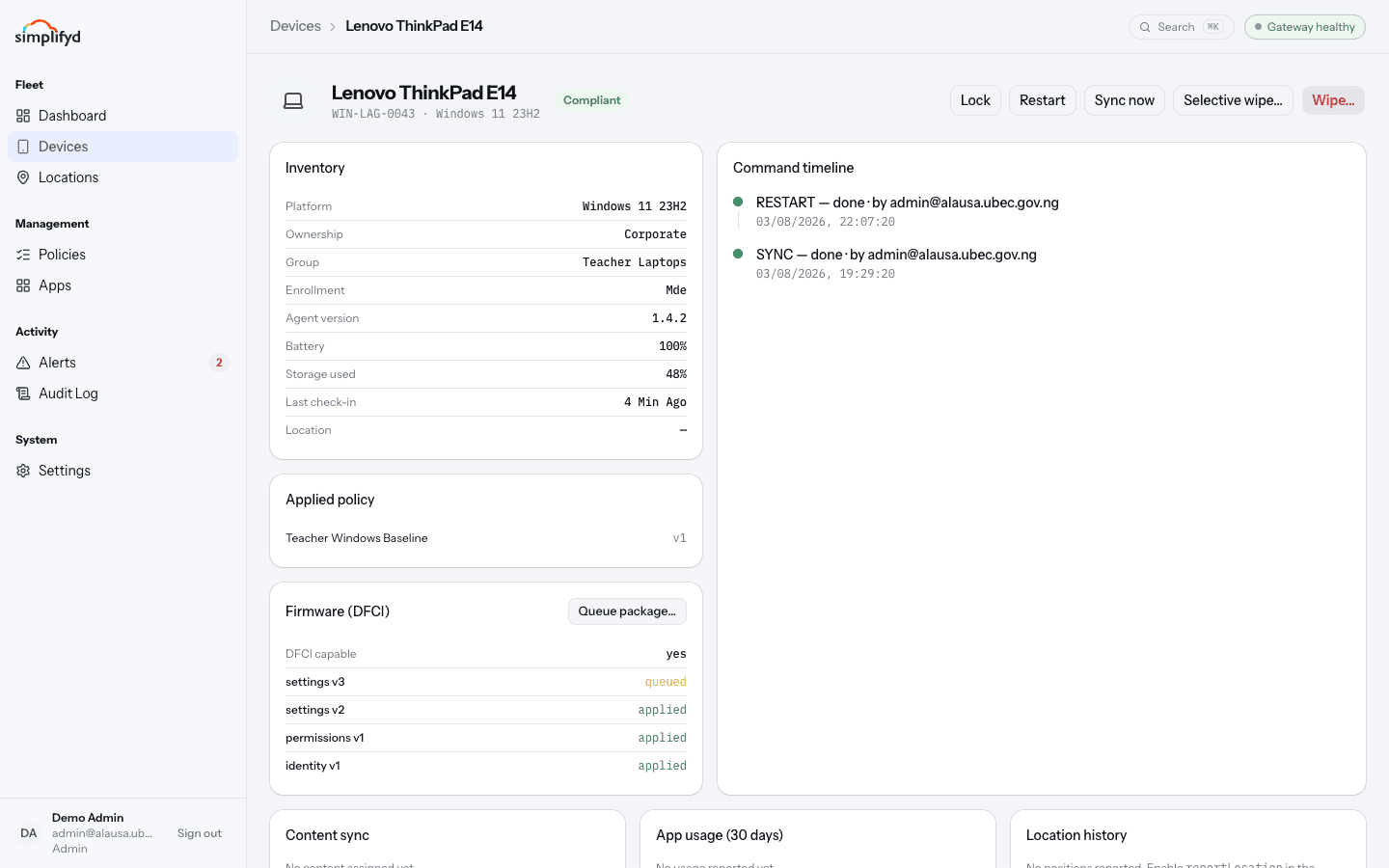
| It says | What it means |
|---|---|
yes | The laptop supports firmware management and has been set up for it. Go to step 3. |
no | This model's firmware does not support it. Nothing more to do — protect the machine with policy and encryption instead. |
unknown | The laptop has not checked in since it was enrolled. Wait for a check-in, or select Sync now, then look again. |
Support is common on Surface devices and on business models from the major manufacturers. Consumer laptops usually do not have it. If you are buying, ask the supplier before you order — it cannot be added later.
Step 2 — The one-time setup at the machine
This step has to be done in person, with the laptop in front of you. That is a deliberate safety rule in the firmware itself: nobody can take control of a machine's firmware remotely without someone physically confirming it. There is no way around it, and you would not want one.
Ask whoever looks after firmware signing in your organisation — usually your security or platform lead — for the identity package on a USB stick. Then, on each laptop:
- Plug in the USB stick.
- Start the laptop and open the firmware setup screen (usually a key like F2, Del, or Volume Up as it powers on — check the maker's guide).
- Find the device management or DFCI menu and choose to install from USB.
- Confirm when the machine asks. It will not proceed without this.
- Restart.
Fold this into how you prepare new laptops — it is much quicker as part of staging than as a special trip later.
After the laptop's next check-in, the device page shows DFCI capable: yes.
Step 3 — Ask for the settings you want
Firmware packages have to be signed with a key your organisation keeps under lock. You do not hold that key, and you should not — losing it means firmware settings can only be fixed by visiting each machine in person.
Send your security lead a plain request, for example:
For the Teacher Laptops group: disable the camera and microphone, and block booting from USB. Please sign a settings package.
To save them a step, open Queue package… and select Copy policy XML first. That copies the settings as they stand today, at the right version number, so they only have to sign what you send rather than work it out themselves.
They send you back a signed package as a block of text.
Step 4 — Queue the package
- Open the device in Devices.
- On the Firmware (DFCI) card, select Queue package….
- Choose the kind you were given — usually settings.
- Enter the version number you were given.
- Paste the signed package into the box.
- Select Queue package.
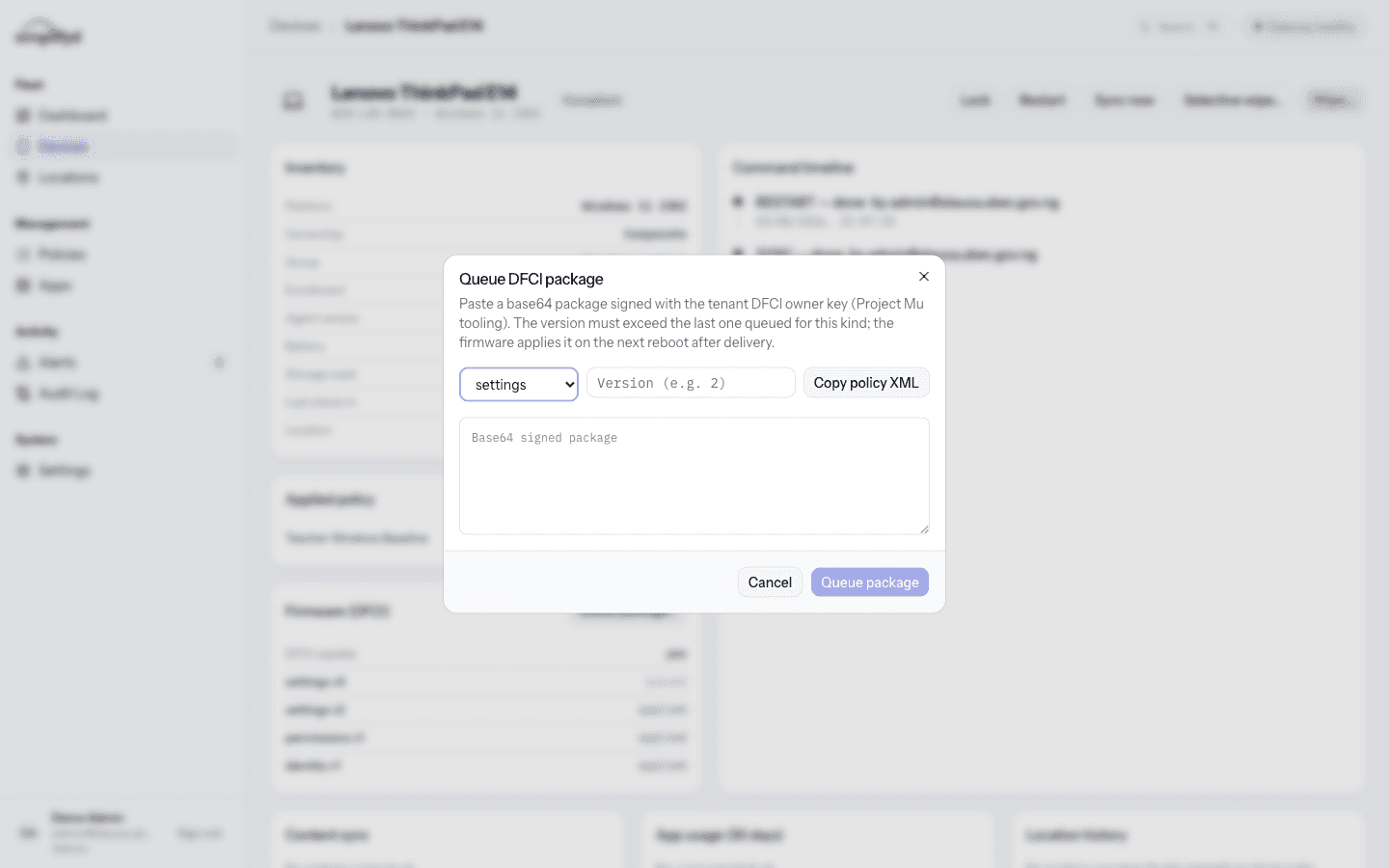
The card then lists the package as queued, above the ones already applied.
Each package has a version number that must be higher than the last one used on that laptop. If the console rejects yours as too low, ask for the package to be re-signed at the next number — do not guess.
Step 5 — Wait for a reboot
Firmware changes do not apply while Windows is running. The sequence is:
- The laptop collects the package at its next check-in.
- The person restarts the laptop, or you send Restart.
- The firmware applies the settings as it starts.
- At the check-in after that, the console records the result on the card.
So a firmware change realistically lands within a day, not within minutes. Plan for that.
Step 6 — Confirm it worked
Look at the Firmware (DFCI) card again. The package should have moved from queued to
applied. If it says failed, send the result shown next to it to whoever signed the
package — it tells them what to change.
The card keeps every package, newest at the top, so you can see the whole history of what was applied to that laptop and when.
Common questions
Can I undo it? Yes, but only with another signed package from the key holder. Ask them to keep an "unlock" package ready before you start rolling this out — it is far easier to prepare in advance than in a hurry.
What if the laptop is sold or given away? Have the firmware settings released first, while you still have the machine. A laptop that leaves your organisation still locked to your firmware key is a problem for whoever receives it.
What if I lose the person who holds the key? Make sure at least two people in your organisation can sign packages, and that the key is backed up somewhere safe. Without it, every affected laptop has to be fixed by hand, in person.
Does this replace device policy? No. Policy controls Windows; this controls the hardware underneath it. Use both.