
Using the console
A tour of every screen in Simplifyd MDM.
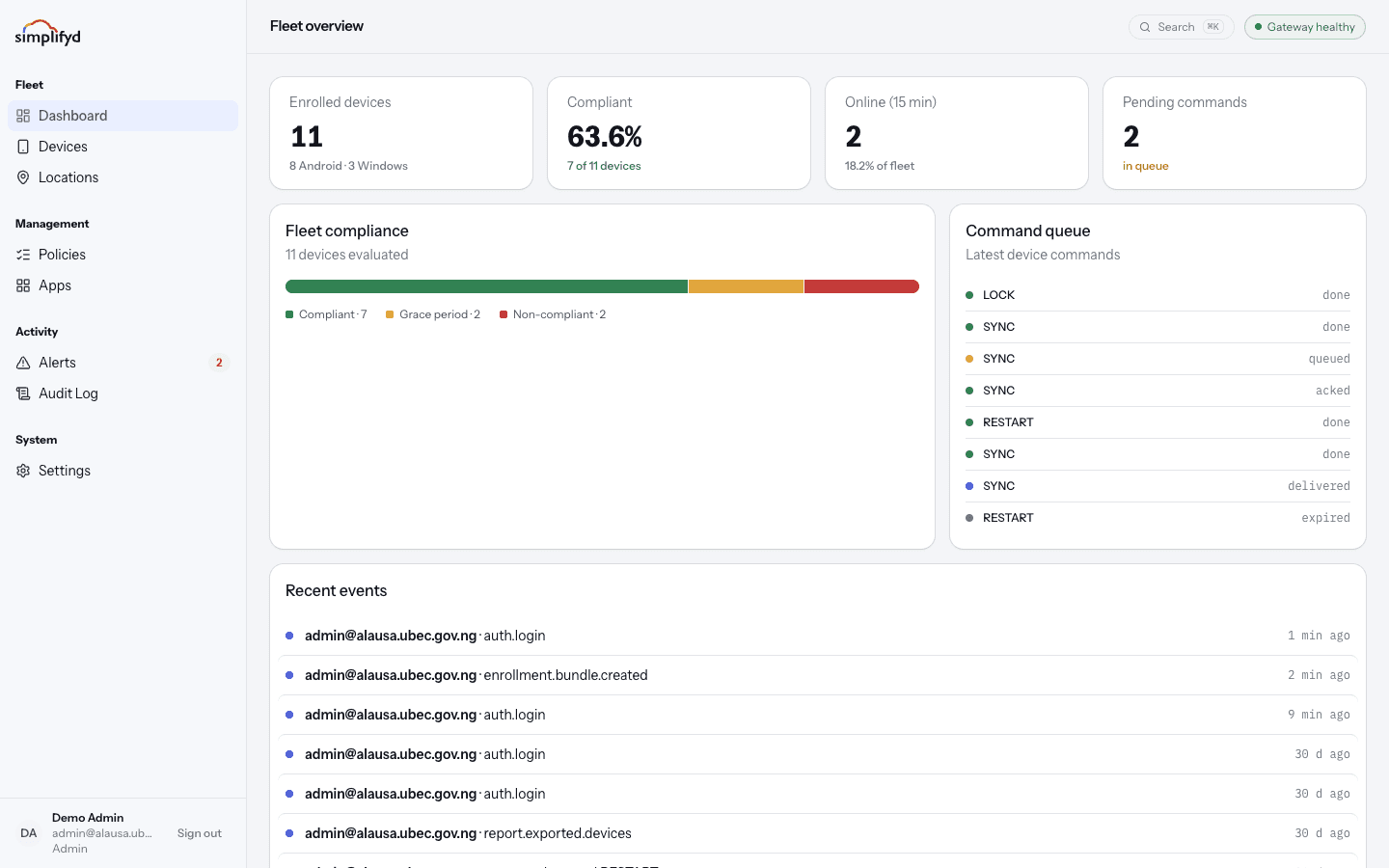
The console is the website where you manage everything. The menu on the left is grouped into four parts.
| Menu group | Screens | Use it to |
|---|---|---|
| Fleet | Dashboard, Devices, Locations | See what you have and where it is. |
| Management | Policies, Apps | Set the rules and the software. |
| Activity | Alerts, Audit Log | See problems and see history. |
| System | Settings | Manage your account, your team, and connections. |
Adding devices lives inside Devices, under the Enrol new device button. The number badge next to Alerts is how many devices need attention right now.
Getting around quickly
- The bar at the top shows where you are. Select any part of it to go back.
- Press Cmd/Ctrl + K to open the search box, then start typing a screen name or a device serial number to jump straight there.
- Gateway healthy in the top right means the console is talking to the service normally. If it says anything else, devices may not be reaching you either.
- Your name, role, and Sign out are at the bottom of the menu.
Who can do what
Every person has one of three roles. Your role decides which buttons you see.
| Role | What they can do |
|---|---|
| Admin | Everything, including wiping devices and managing people. |
| Helpdesk | Send device commands and view information, but not change configuration. |
| Auditor | Read only: devices, policies, and the audit log. |
If a button is missing or greyed out, it is almost always your role. Ask an admin.