
Device actions
Lock, sync, restart, wipe, and lost mode — what each one does.
Actions are the buttons along the top of a device's page. Each one sends an instruction to that device. The device carries it out the next time it checks in, which is usually within a few minutes.
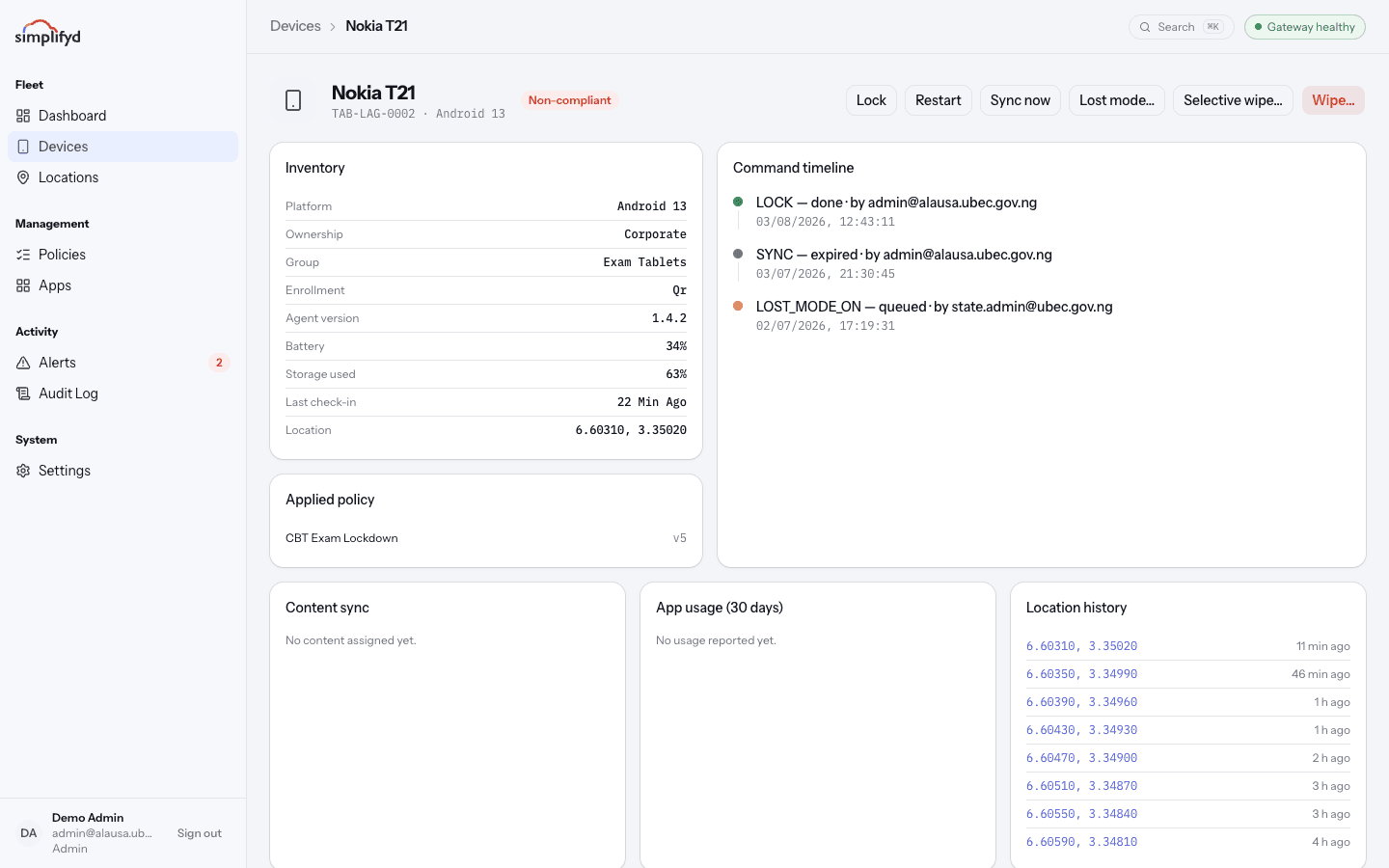
The destructive actions end in "…" because they ask you to confirm before anything happens. Which buttons you see depends on the platform and your role — Lost mode only appears on Android devices, and the wipes only for admins.
Some actions erase data and cannot be undone. Read the table before using them.
What each action does
| Button | What happens on the device | Can you undo it? |
|---|---|---|
| Sync now | The device checks in and refreshes its details and policy. Nothing is changed or deleted. | Nothing to undo — always safe. |
| Lock | The screen locks immediately. The person unlocks it with their normal PIN or password. | Yes — the user just unlocks it. |
| Restart | The device reboots. | Yes — it comes back on its own. |
| Lost mode | Android only. The device locks and shows a message you write on the lock screen, so a finder knows who to contact. | Yes — the button becomes Exit lost mode. |
| Selective wipe | Removes only work data. On Android it clears (or removes) the apps you list. On Windows it removes the device from management and takes the organisation's data with it. Personal photos, messages, and accounts are left alone. | No. Work data is gone. |
| Wipe | Full factory reset. Everything on the device is erased, personal data included, and the device leaves your fleet. | No. Nothing can be recovered. |
In the command timeline these appear under their technical names — SYNC, LOCK,
RESTART, LOST_MODE_ON, SELECTIVE_WIPE, WIPE — which is also how they show up in
the audit log.
Choosing between selective wipe and full wipe
- The device is owned by the person (BYOD) and they are leaving → selective wipe. It is unfair and usually unlawful to erase someone's personal phone.
- The device is owned by the organisation and is being handed to someone else, or is lost for good → full wipe.
- You are not sure → lost mode first. It buys you time without destroying anything.
Lost mode message
When you start lost mode you write the text that appears on the lock screen. Keep it short and useful, for example:
This device belongs to Springfield High School. Please call 0800 123 4567.
Do not put personal details of the device's user in the message — anyone who finds the device can read it.
Following an action through
Every action appears in the Command timeline on the device page with its state:
- Queued — waiting for the device to check in.
- Sent / Delivered — the device has it.
- Acknowledged / Done — the device carried it out.
- Failed — the device could not do it. The timeline gives the reason.
- Expired — the device never checked in before the deadline. Send it again.
A command that sits at Queued means the device is not reaching the console. See Device is not checking in.
Who can do what
Admins can use every action. Helpdesk users can send commands but not the destructive ones. Auditors can look but not send anything.