
Apps
The software you put on your devices.
The Apps screen lists every application you manage, with the platform it runs on, its version, and how it is installed.
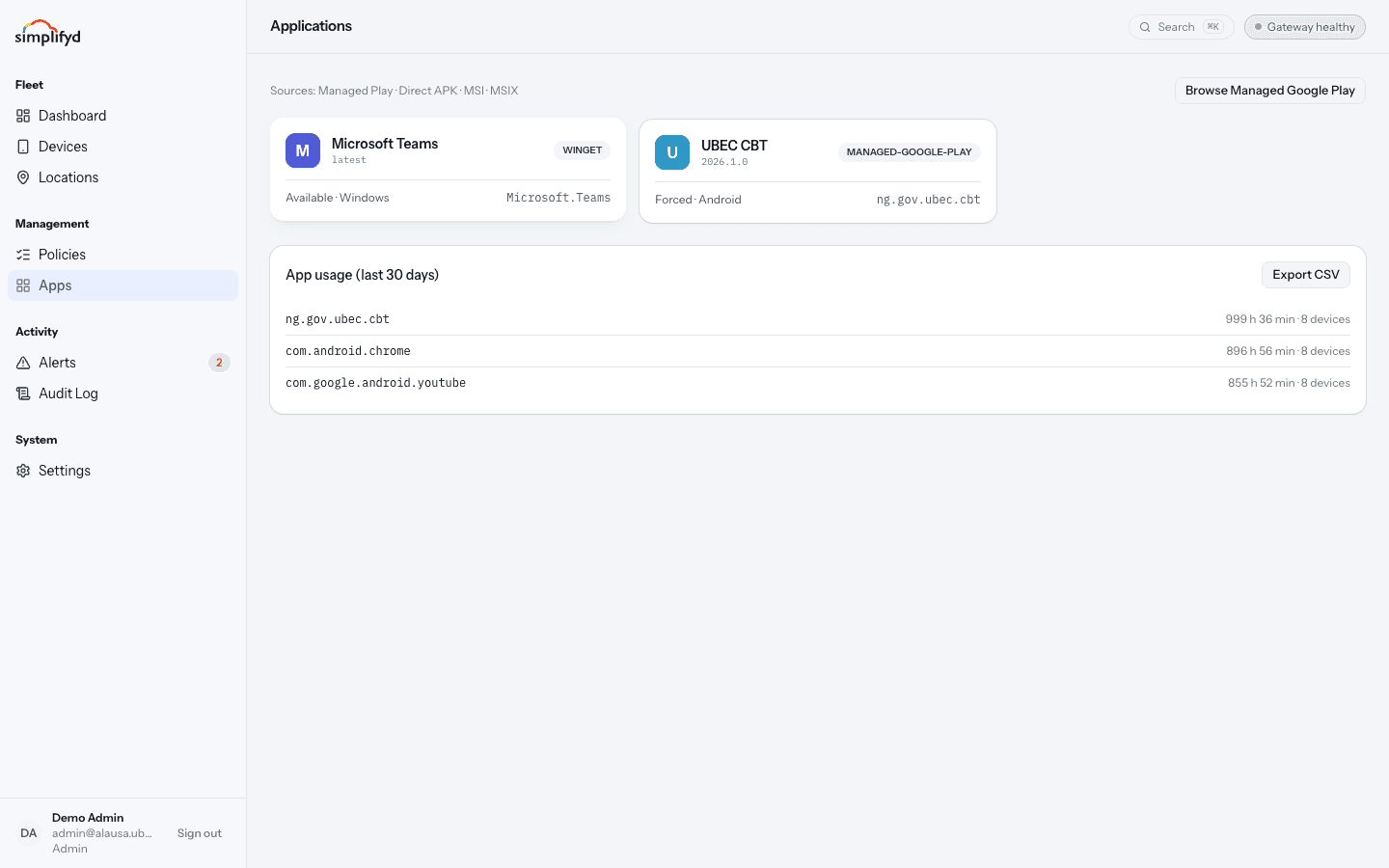
Reading an app card
| Field | Meaning |
|---|---|
| Name | The app as people see it on the device. |
| Platform | Android or Windows. |
| Package ID | The app's unique technical name. Use it to be sure you have the right app. |
| Version | The version being delivered. |
| Source | Where the app comes from — Managed Play, a direct APK, MSI, MSIX, or winget. |
| Install mode | Whether the app is installed for people automatically (Forced) or offered as optional (Available). |
Install modes
- Forced — the app is installed on every device in the assigned groups, and people cannot remove it.
- Available — the app appears in the device's work app store, and people install it if they want it.
Managed Google Play
For Android, apps normally come from Managed Google Play. Browse Managed Google Play opens the store inside the console so you can find and approve apps without leaving the page.
Your organisation must be connected to Managed Google Play first. If the button does not work, an admin should check Settings → Integrations.
How apps reach devices
Assign an app to a group. Every device in that group installs it at its next check-in, normally within a few minutes. Large apps take longer and need the device to be on Wi-Fi and reasonably charged.
If an app has not appeared on a device:
- Check the device's last check-in time — an offline device installs nothing.
- Check the device is in the group the app is assigned to.
- Select Sync now on the device to make it check in straight away.
App usage
The App usage (last 30 days) panel at the bottom shows which apps people actually open, how much total time each one has been in front of them, and on how many devices. Each device page shows the same for that one device.
Use it to decide what to keep paying for and what to remove. Export CSV gives you the figures as a spreadsheet. Only Android devices report usage.