
Your account and settings
Your profile, your password, MFA, and connected services.
Settings has four sections down the side: Account, Security, Members, and Integrations. Members is covered in Team and access.
Account
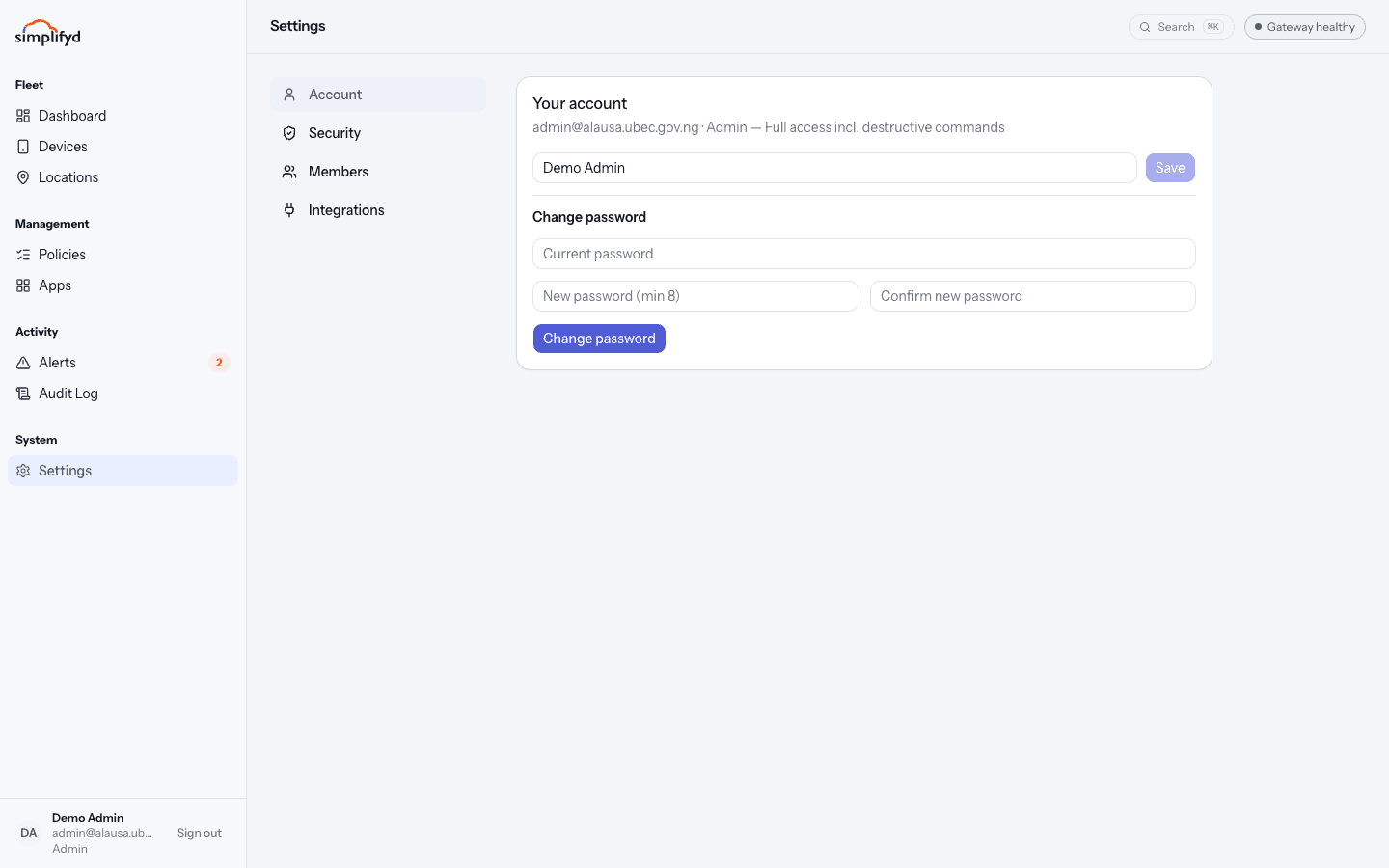
The top line shows the email address and role attached to your account. Underneath is your display name — what colleagues see next to your actions in the audit log, so use your real name. Select Save after changing it.
Change password
Enter your current password, then the new one twice, and select Change password. Passwords must be at least 8 characters. Longer is better — a short phrase you can remember beats a short jumble you cannot.
Changing your password does not sign you out of the console you are using.
Security
This section holds multi-factor authentication, which asks for a six-digit code from your phone as well as your password. Turn it on.
To enable it:
- Select Set up MFA.
- Scan the square code with an authenticator app, or copy the secret next to it and type it into the app by hand.
- Enter the six-digit code the app gives you and select Confirm & enable.
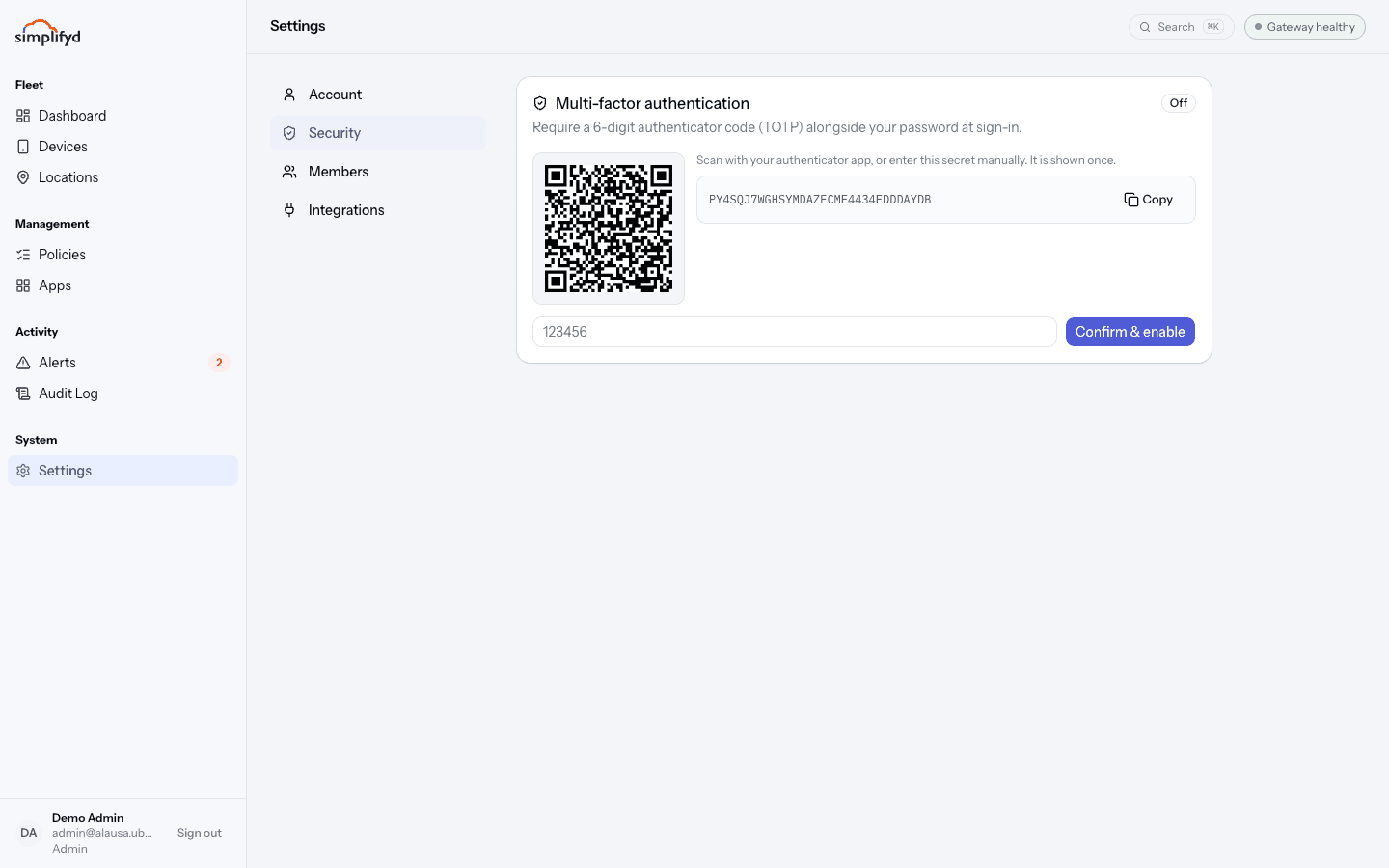
The badge in the top right of the card tells you whether MFA is currently On or Off.
If the code is rejected: the codes are time-based, so check your phone's clock is set to update automatically. Then wait for a fresh code and try again.
If you get stuck part-way: use Restart MFA setup. That issues a new secret and cancels the old one, so remember to re-scan.
To turn it off: confirm with your password. Only do this if you are switching phones, and turn it back on straight away.
The secret is shown once. If you lose the phone with your authenticator app and kept no copy, you cannot sign in — an admin has to reset MFA on your account.
Integrations
Connections to outside services your fleet relies on.
Managed Google Play connects your organisation to Google so Android devices can be managed by Google's Android Device Policy and install Play apps quietly in the background. The badge shows whether it is connected.
Not every deployment offers this. If the card says it is unavailable, your devices are managed by the Simplifyd agent app instead, which does the same job — there is nothing wrong and nothing for you to fix.
Only admins can change integrations.