
Policies
The rules your devices must follow.
A policy is a set of rules. Each policy is assigned to one or more groups, and every device in those groups follows it automatically.
The Policies screen
The list on the left shows every policy with its version number and the groups it is assigned to. Select one to see what it contains.
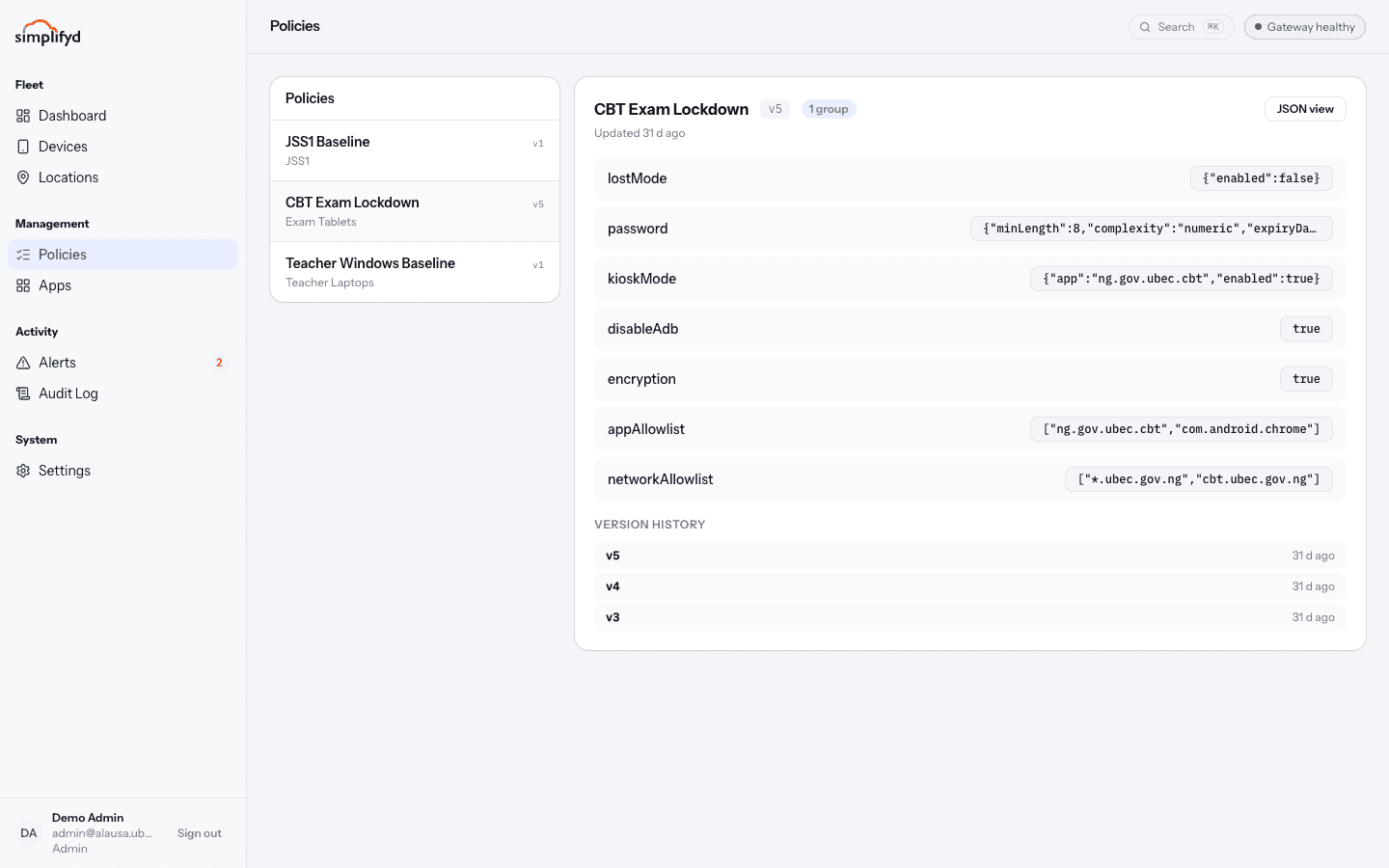
Each rule is listed as a name on the left and its value on the right. The JSON view button switches to the exact configuration sent to devices, for when you need to be precise; select it again to come back.
Typical rules
The example above is an exam lockdown policy. Reading its rules in plain English:
| Rule | What it does |
|---|---|
password | Sets how strong the screen lock must be — minimum length, what characters, how often it changes. |
kioskMode | Locks the device to a single app, so nothing else can be opened. |
appAllowlist | Only these apps may be used. |
networkAllowlist | Only these websites and addresses may be reached. |
encryption | The device must encrypt its storage. |
disableAdb | Blocks the developer connection used to sideload software. |
lostMode | Whether the device is currently locked with a "please return me" message. |
Other policies use different rules — a laptop baseline will not have a kiosk app, for example. The exact list depends on the platform: Android and Windows do not support all the same controls, and a rule that does not apply to a platform is simply ignored there.
Versions
Every time a policy changes, its version number goes up by one and the old version is kept. Version history at the bottom of the policy lists the earlier versions with the date each was made, so you can see what the rules used to be and when they changed. The policy in the picture is on v5.
Devices pick up the new version at their next check-in, usually within a few minutes.
How a device becomes non-compliant
The device compares itself against the policy at each check-in. If something does not match, it reports a finding. Findings appear on Alerts with a severity of low, medium, or high.
Some rules have a grace period. During it the device is marked Grace period rather than Non-compliant, which gives the person time to, for example, set a PIN before the device is treated as a problem.
Assigning a policy
Policies attach to groups, not to individual devices. To change which policy a device follows, move it to a different group or change the policy assigned to its current group. Changing a group's policy affects every device in it, so check the device count first.
Creating and editing policies is an admin job. Helpdesk and auditor users can read policies but not change them.