
Enrolment
How new devices join your fleet.
Enrolment is the one-time setup that connects a device to your console. Until a device is enrolled you cannot see it or manage it.
The three ways to enrol
| Method | Best for | How the person sets it up |
|---|---|---|
| Android — QR provisioning | Phones and tablets the organisation owns and can factory reset. | Start from a fresh or reset device, tap the first setup screen six times, then scan the code. |
| Android — Managed Google Play | Android fleets where you want apps delivered through Google Play. | The device is managed by Google's Android Device Policy app. |
| Windows | Laptops and desktops. | Add a work account using the enrolment URL and token. |
Creating an enrolment token
Go to Devices and select Enrol new device.
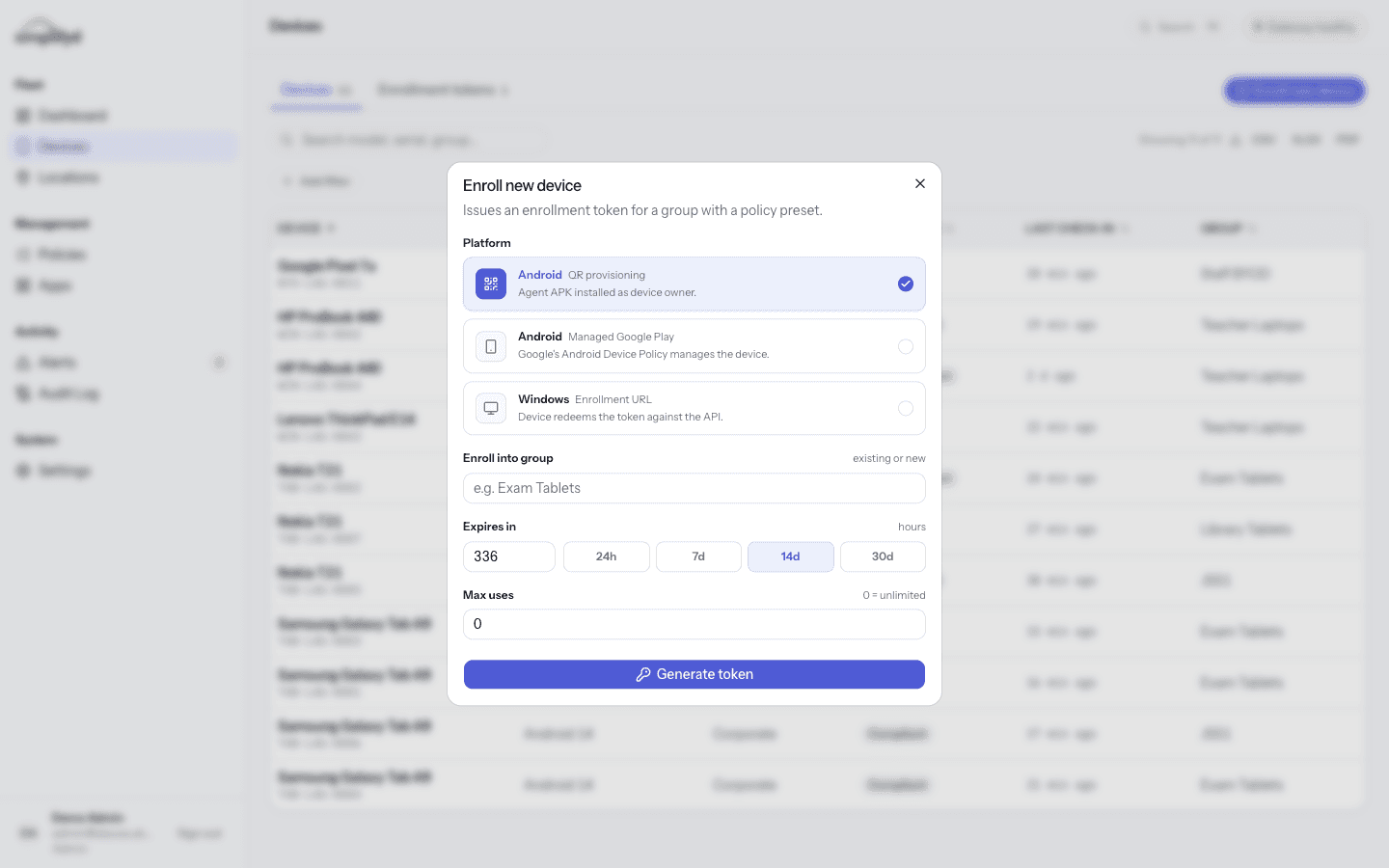
Fill in four things:
| Field | What to put |
|---|---|
| Platform | One of the three methods above. |
| Enrol into group | The group the device joins. Type a new name or pick an existing one. |
| Expires in | How long the token stays usable, in hours. The buttons give you 24h, 7d, 14d, or 30d. |
| Max uses | How many devices may use this token. 0 means unlimited. |
Then select Generate token.
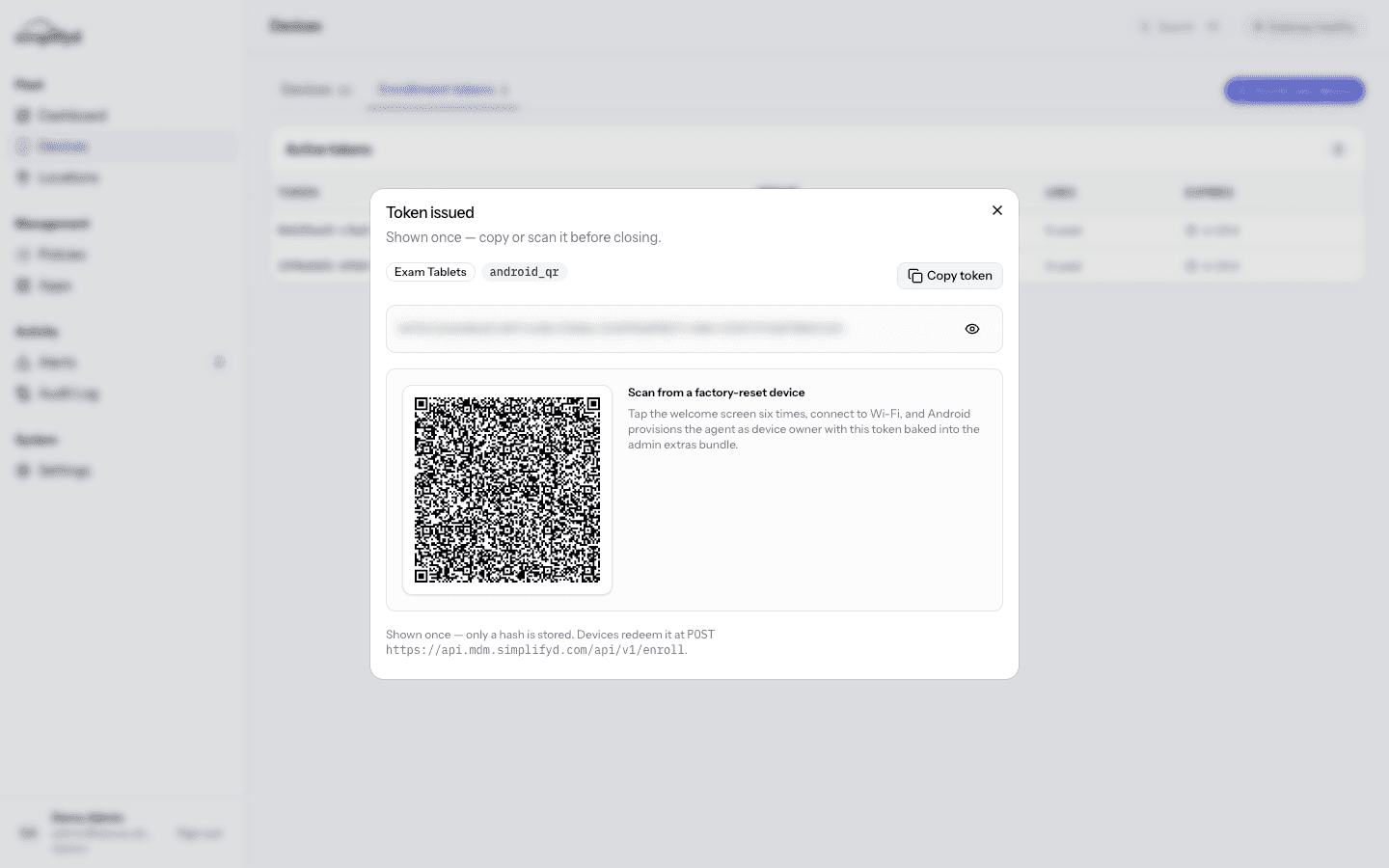
The token is shown once. Use the eye icon to reveal it and Copy token before you close the panel. If you lose it, generate a new one — old ones cannot be shown again.
Set a sensible expiry and use count
- Enrolling one device today → short expiry, max uses
1. - Setting up a classroom of 30 tablets this week → 7 days, max uses
30. - A token that never expires and never runs out is a key anyone can use. Avoid it.
Where the policy comes from
You do not pick a policy on this panel. The device joins the group, and the group's policy applies at the first check-in. So make sure the group already has the right policy before you enrol into it.
After enrolment
The device appears in the Devices tab within a few minutes, and the token's use count goes up on the Enrolment tokens tab. Check that:
- the last check-in time is recent,
- the group is what you expected, and
- the compliance badge is green.
If the badge is not green, Alerts tells you which rule is not met — often the person just has not set a screen lock yet.
Re-enrolling a device
A device that has been factory reset must be enrolled again with a fresh token. If the device was set up for automatic re-enrolment by your administrator, it may rejoin on its own after a reset.